Donations
News
About
Support
Security
Screen shots
Download
Plugins
Documentation
Sponsors
Bounties

Junk Email Filter
|
Screen Shots
To view a full sized picture, just click on the thumbnail
image.
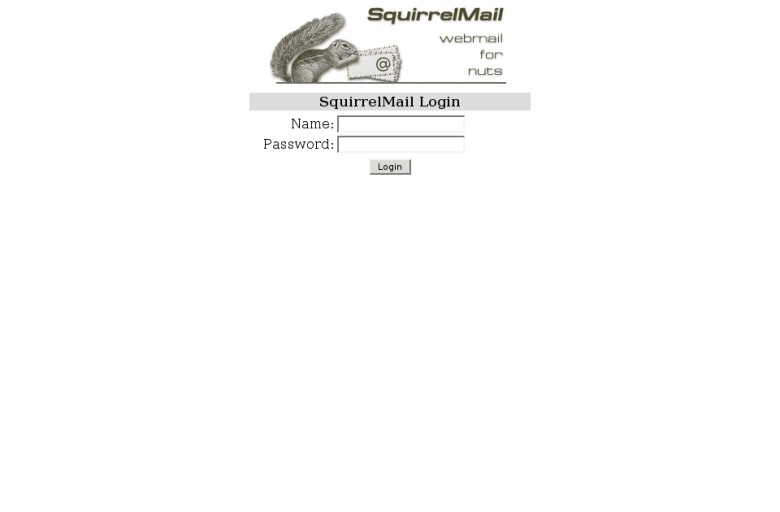
Login Screen
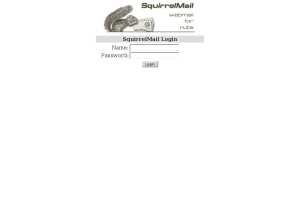
The first screen presented to the user is the login screen where they
enter their username and password to log into the IMAP server.
|
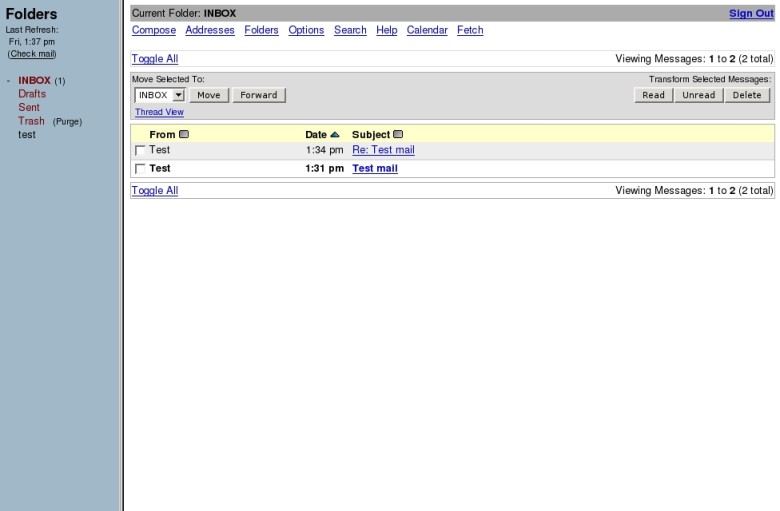
Message List
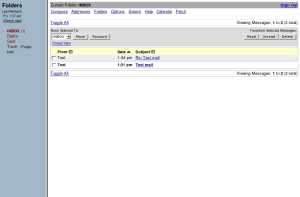
After the user logs in, the first folder that is opened is the INBOX.
This is the summary of the INBOX folder with the message listing on
the right, and the folder listing on the left. The folder list (left)
and tool bar (top) are always present inside SquirrelMail for easy navigation.
|
|
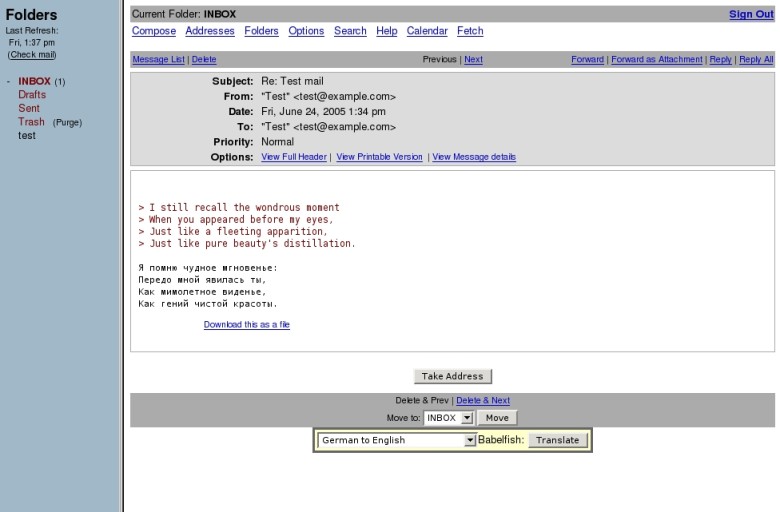
Reading a Message
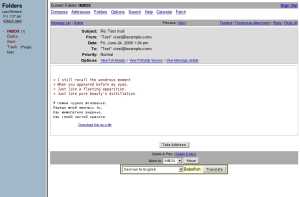
One of the most common tasks performed by an email client is actually
reading messages. This is the message reader for SquirrelMail. It is
designed to allow unobstructed and easy reading.
|
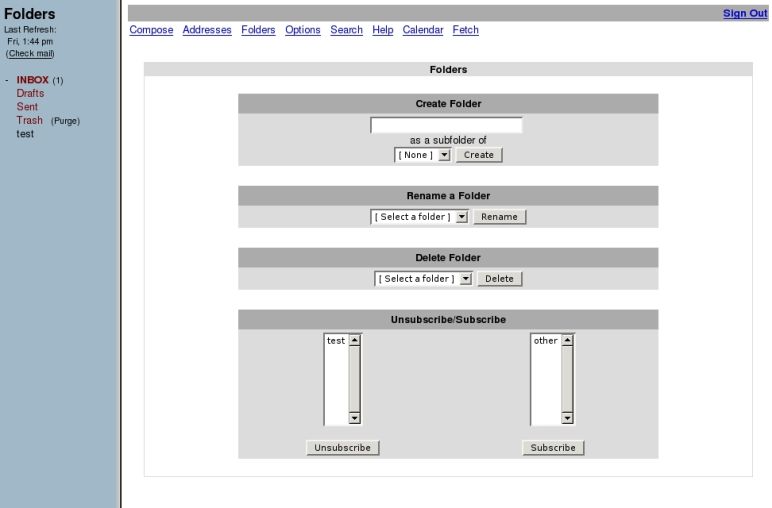
Folder Management
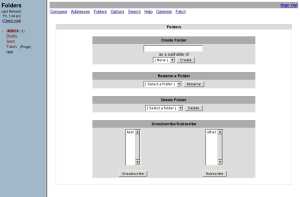
Since IMAP folders are stored on the server, it is also essential to
have a proper folder management utility. SquirrelMail supports all
the necessary functions used when managing folders: create, delete,
rename, subscribe, and unsubscribe.
|
|
Options
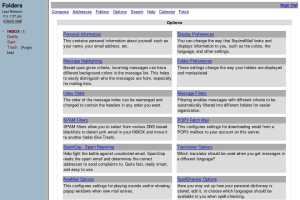
SquirrelMail is highly configurable. There are five main configuration
sections included in the base distribution. Plugins can also create
option sections that integrate seamlessly into the rest of the options.
|
Display Options
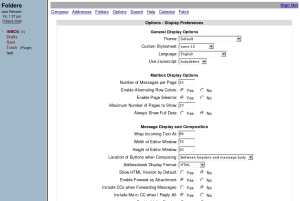
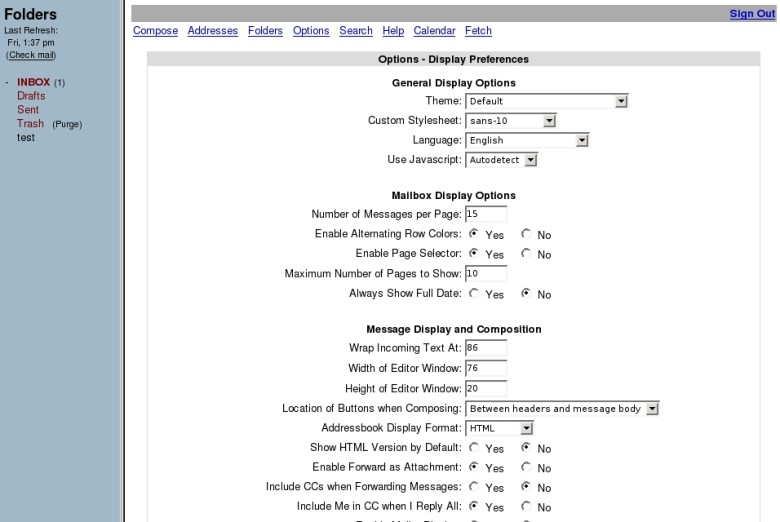
Here is a close-up look at one of the options sections, the display
options. This is where the look and feel of SquirrelMail can be
tweaked by the user and has such options as language, theme, the use
of JavaScript, etc.
|
|
Compose
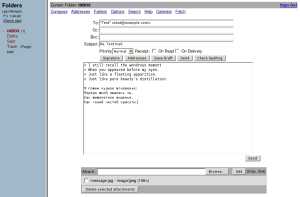
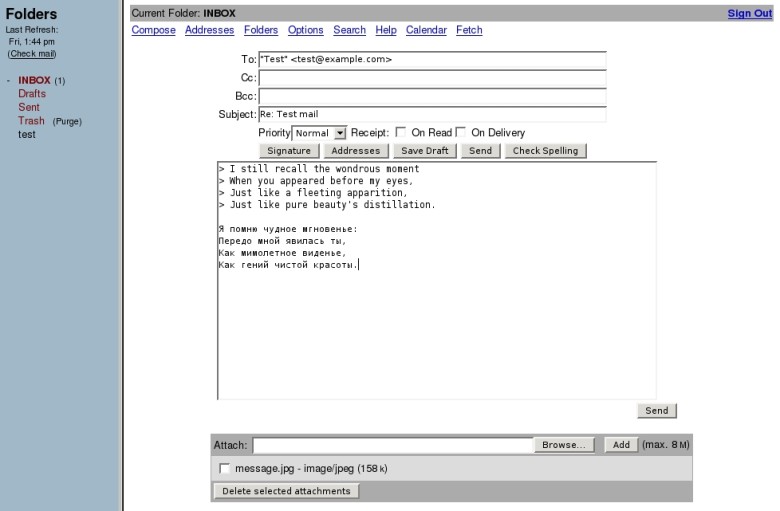
When composing an email inside SquirrelMail, all the necessary features
are within reach. The compose screen allows for spell checking, attachments,
and priorities.
|
Address Book
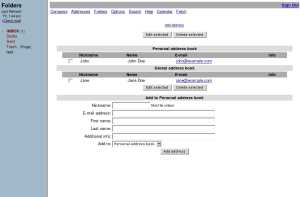
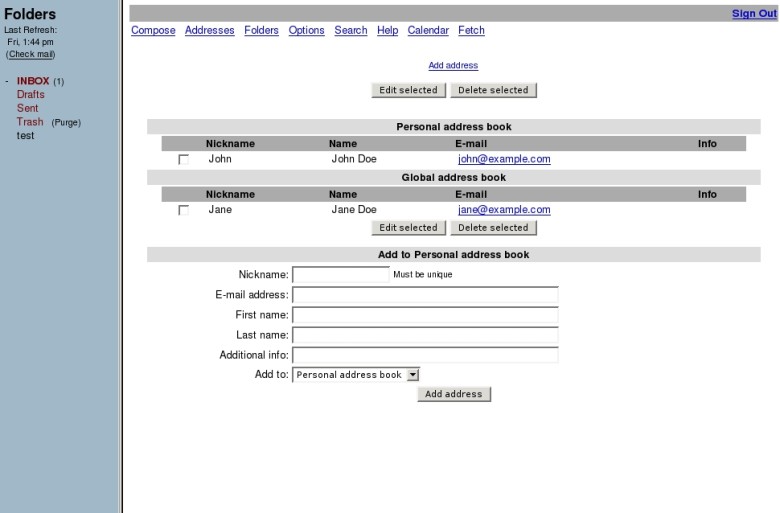
Users can store email contacts in personal and shared address books.
|
See also SquirrelMail theme previews.
You can find other screenshots in
screenshots section of SquirrelMail SourceForge site.
|